How to Send a WhatsApp Message With Python (Requests and Flask Examples)
Send WhatsApp text, images and documents from Python with the requests library, retry safely, and receive replies in a Flask webhook, with code you can copy.
On this page
- Setup
- Send a text message
- Send images and documents
- Retry only what's worth retrying
- Send to a list of customers
- Receive replies with Flask
- Save photos and files customers send you
- Check the connection before a big run
- Posting to a group
- Reuse connections and set timeouts
- In a Django project
- Running it on a schedule
- Logging and testing
- Checklist before going live
Python is the go-to language for scripts, data jobs and small backends, which makes it a natural place to automate WhatsApp: a nightly script that reminds customers about unpaid invoices, a Django app that confirms bookings, a monitoring job that alerts the team. To send a WhatsApp message with Python you need nothing more than the requests library and an API key.
This guide gives you working code for sending, error handling, bulk sends and a Flask webhook for replies.
Setup#
- Python 3.8 or newer and
pip install requests. - A WhatsApp number linked to WApenda, and its device API key (starts with
wpk_). - The key saved in an environment variable:
export WAPENDA_KEY=wpk_…
Send a text message#
import os
import requests

API = "https://tekservix.com/wapenda/api"
HEADERS = {"Authorization": f"Bearer {os.environ['WAPENDA_KEY']}"}

def send_whatsapp(to: str, text: str) -> dict:
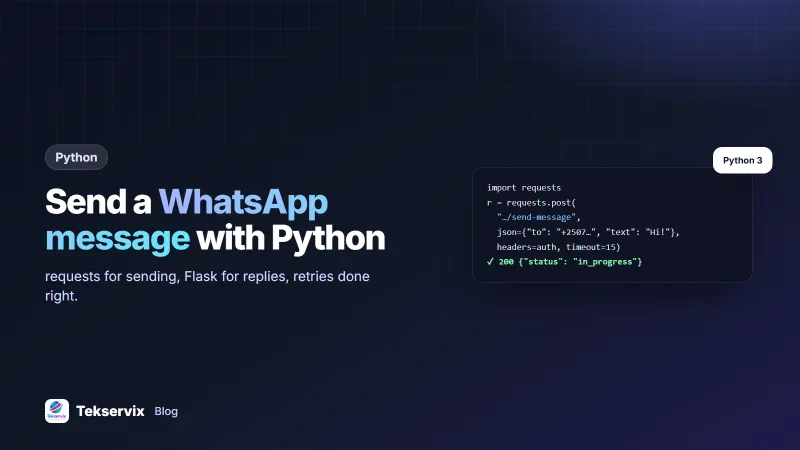
    r = requests.post(f"{API}/send-message", json={"to": to, "text": text},
                      headers=HEADERS, timeout=15)
    data = r.json()
    if r.status_code >= 400 or not data.get("success"):
        raise RuntimeError(f"WhatsApp API {r.status_code}: {data.get('message')}")
    return data["data"]          # {'msgId': 58213, 'status': 'in_progress', ...}

print(send_whatsapp("+250788123456", "Hi Eric, your appointment is confirmed for Friday 10:00."))
The response comes back immediately with "status": "in_progress". WApenda queues the message and sends it at a safe pace. Keep the msgId if you want to track delivery.
Send images and documents#
send = lambda body: requests.post(f"{API}/send-message", json=body, headers=HEADERS, timeout=15)

send({"to": "+250788123456", "text": "This week's offers",
      "imageUrl": "https://example.com/offers.jpg"})

send({"to": "+250788123456", "text": "Your statement for March",
      "documentUrl": "https://example.com/statements/march.pdf", "fileName": "Statement-March.pdf"})
Media must be reachable at a public HTTPS link, or uploaded first through the API's /upload endpoint.
Retry only what's worth retrying#
import time

def send_with_retry(to, text, attempts=4):
    for i in range(attempts):
        r = requests.post(f"{API}/send-message", json={"to": to, "text": text},
                          headers=HEADERS, timeout=15)
        if r.status_code == 429 or r.status_code >= 500:
            time.sleep(int(r.headers.get("Retry-After", 2 ** i)))
            continue
        return r.json()
    raise RuntimeError("gave up after retries")
A 429 means you hit the rate limit (300 requests a minute per key). 5xx means the number is reconnecting. Both are worth retrying. A 422 (bad data), 401 (wrong key), 402 (plan inactive) or 409 (number not linked) won't fix itself; log it and alert someone.
Send to a list of customers#
import csv

with open("customers.csv", newline="", encoding="utf-8") as f:
    for row in csv.DictReader(f):
        if row["whatsapp_opt_in"] != "yes":
            continue
        send_with_retry(row["phone"], f"Hi {row['first_name']}, your invoice {row['invoice']} is due on {row['due']}.")
This works for a few hundred messages. For larger jobs, push each message into a task queue (Celery, RQ or a database table) so a crash halfway through doesn't resend to people who already got one. Only message people who opted in; our guide to WhatsApp opt-in best practices explains how to collect and record consent.
Receive replies with Flask#
import hmac, os
from flask import Flask, request, abort

app = Flask(__name__)
SECRET = os.environ["WAPENDA_WEBHOOK_SECRET"]

@app.post("/wa-webhook")
def wa_webhook():
    if not hmac.compare_digest(SECRET, request.headers.get("X-Webhook-Signature", "")):
        abort(401)
    event = request.get_json(force=True)
    if event.get("event") == "messages.received":
        msg = event["data"]["messages"]
        sender = msg["key"].get("cleanedSenderPn")
        text = msg.get("messageBody", "")
        save_incoming(sender, text)        # your own function, keep it fast
    return "", 200
hmac.compare_digest compares the secret in constant time. Return 200 quickly and do slow work elsewhere; the reasons are covered in our WhatsApp webhook guide.
Save photos and files customers send you#
Customers don't only reply with text. They send a photo of a damaged parcel, a screenshot of a mobile money payment or a scanned form. WhatsApp encrypts media, so the webhook carries a reference to the file rather than the file itself. Post the webhook payload to /decrypt-media and you get back a temporary public link to the decrypted file:
def save_media(event):
    r = session.post(f"{API}/decrypt-media", json=event, timeout=(5, 30))
    url = r.json()["data"]["publicUrl"]
    content = session.get(url, timeout=(5, 60)).content
    with open(f"uploads/{event['data']['messages']['key']['id']}.jpg", "wb") as f:
        f.write(content)
Download the file straight away and store it yourself; the link is temporary. Run this in a background task, never inside the webhook handler, because large videos take a while.
Check the connection before a big run#
A reminder script that runs at 08:00 is only useful if the WhatsApp number is linked at 08:00. Phones get switched off, reinstalled or logged out. One call to GET /status at the start of the script tells you where you stand:
state = session.get(f"{API}/status", timeout=(5, 15)).json()["data"]["status"]
if state != "connected":
    alert_team(f"WhatsApp is {state}; reminders postponed")
    raise SystemExit(1)
A status of need_scan or logged_out means someone has to scan the QR code again. Failing early with a clear alert is much better than queueing 400 reminders that sit waiting while customers miss appointments.
Posting to a group#
The same send-message call works for groups: pass the group's JID (it ends in @g.us) as to. List your groups with GET /groups to find it. Teams use this for internal alerts, such as posting each new order into a staff group, which avoids building a separate notification app. Our WhatsApp group API guide covers creating groups and managing members from code.
Reuse connections and set timeouts#
If you send more than a handful of messages, use a requests.Session. It reuses the HTTPS connection instead of opening a new one per message, which is noticeably faster:
session = requests.Session()
session.headers.update(HEADERS)

def send(to, text):
    return session.post(f"{API}/send-message", json={"to": to, "text": text}, timeout=(5, 15))
The tuple timeout means 5 seconds to connect and 15 to read. Always set one: without a timeout, a network hiccup can leave a script hanging forever.
In a Django project#
Put the sending function in a small whatsapp.py module, read the key from settings, and call it from a signal or a task when an order changes status. Keep the HTTP call out of your views, so a slow network never delays a page.
Running it on a schedule#
For reminders, schedule the script with cron on a server:
# every weekday at 08:00, remind customers of invoices due today
0 8 * * 1-5  /usr/bin/python3 /opt/reminders/send_due.py
Or use your framework's scheduler (Celery beat, Django-Q, APScheduler) if you already have one. Our article on WhatsApp payment reminders has wording that gets invoices paid without annoying anyone.
Logging and testing#
Log every send with the recipient, your own reference and the returned msgId, but never the API key. When a customer says "I never got it", that log answers the question in seconds. For tests, add a switch such as WAPENDA_TEST_TO: when it's set, every message goes to that one number instead of the real recipient. You can run the whole script against real data without messaging real customers, and remove the switch when you're confident.
Checklist before going live#
- Phone numbers stored in international format.
- Keys in environment variables, never in the repository.
- Retries limited to 429 and 5xx, with backoff.
- A test mode that sends only to your own number.
- Opt-in recorded for every recipient.
The complete endpoint list is in the WApenda API documentation. The Requests documentation covers timeouts, sessions and retries in more depth.
Working in PHP instead? See how to send a WhatsApp message with PHP.
Frequently asked questions
Which Python library do I need to send WhatsApp messages?
Only the requests library, or Python's built-in urllib. A WhatsApp API is a normal HTTPS endpoint, so you send a POST request with JSON and your API key.
Can I send WhatsApp messages from a Python script on my computer?
Yes, as long as the script can reach the internet. For production, run it on a server or as a scheduled job so messages don't depend on your laptop being on.
How do I send WhatsApp messages to many people with Python?
Loop over opted-in contacts and send one request per person, ideally through a task queue. The API spaces messages out to protect your number, so let it handle pacing and respect 429 responses.

Tekservix Team
The team behind Tekservix
The Tekservix Team builds and supports Tekservix: WhatsApp and SMS APIs, AI tools, invoicing, PDF and SEO tools for growing businesses. We write practical, tested guides based on what we see our customers do every day.
More articles from the Tekservix Team