How to Send a PDF on WhatsApp Through an API (Invoices, Tickets, Reports)
Send PDF documents through a WhatsApp API: public URL, upload or base64, file names and captions, size limits, secure links for private files and code in cURL, PHP and Node.
On this page
Invoices, tickets, statements, report cards and delivery notes all live as PDFs, and customers would rather receive them on WhatsApp than dig through email. Sending a PDF on WhatsApp through an API takes one request, but a few details make the difference between a tidy "Invoice-1042.pdf" in the chat and a file called "a8f3e2c1" that nobody trusts.
This guide covers the three ways to send a PDF through a WhatsApp API, naming and captions, private files, and tracking whether it was delivered.
Option 1: Send from a URL#
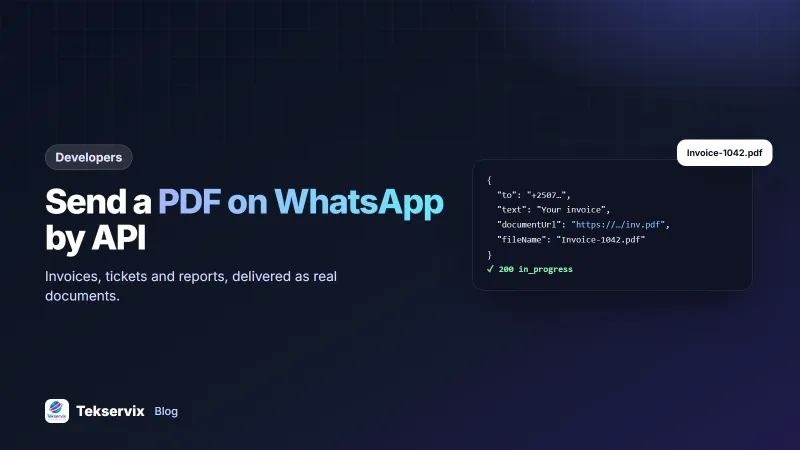
If the PDF is already reachable at an HTTPS link, pass it as documentUrl:
curl -X POST https://tekservix.com/wapenda/api/send-message \
  -H "Authorization: Bearer wpk_your_key" \
  -H "Content-Type: application/json" \
  -d '{"to": "+250788123456",
       "text": "Hi Aline, here is your invoice INV-1042 for RWF 38,000. Due 15 October.",
       "documentUrl": "https://files.example.com/invoices/INV-1042.pdf?sig=abc123&exp=1760000000",
       "fileName": "Invoice-INV-1042.pdf"}'
The API downloads the file and sends it as a WhatsApp document. The text becomes the caption under the file.
Option 2: Upload first#
If the file isn't online, for example it was just generated on your server, upload it to the API and use the link it returns:
curl -X POST https://tekservix.com/wapenda/api/upload \
  -H "Authorization: Bearer wpk_your_key" \
  -F "file=@/tmp/INV-1042.pdf"

# → {"success": true, "data": {"publicUrl": "https://…/INV-1042.pdf"}}
Then send with that publicUrl as the documentUrl. Uploaded files are kept for 48 hours, which is plenty for the message to be sent and retried if needed.
Option 3: Base64 in the request#
For small files, you can include the content directly:
{"to": "+250788123456",
 "document": {"data": "JVBERi0xLjQK…", "filename": "Report-September.pdf"},
 "caption": "Your September report"}
Base64 makes the request about a third larger than the file, so keep this for documents of a few hundred kilobytes.
Which option to use#
| Situation | Best option |
|---|---|
| The PDF is already stored in cloud storage | URL, with a signed, expiring link |
| You generate the PDF on the fly | Upload, then send |
| Small file and you want one request | Base64 |
Code examples#
PHP#
$body = json_encode([
  'to' => '+250788123456',
  'text' => 'Your ticket for Saturday',
  'documentUrl' => $signedUrl,
  'fileName' => 'Ticket-A1742.pdf',
]);
$ch = curl_init('https://tekservix.com/wapenda/api/send-message');
curl_setopt_array($ch, [CURLOPT_POST => true, CURLOPT_POSTFIELDS => $body, CURLOPT_RETURNTRANSFER => true, CURLOPT_TIMEOUT => 20,
  CURLOPT_HTTPHEADER => ['Authorization: Bearer ' . getenv('WAPENDA_KEY'), 'Content-Type: application/json']]);
$res = json_decode(curl_exec($ch), true);Node.js#
await fetch('https://tekservix.com/wapenda/api/send-message', {
  method: 'POST',
  headers: { Authorization: `Bearer ${process.env.WAPENDA_KEY}`, 'Content-Type': 'application/json' },
  body: JSON.stringify({ to, text: 'Your statement', documentUrl: url, fileName: 'Statement-Sep-2026.pdf' }),
});
More complete examples are in our guides for PHP and Node.js.
Name the file properly#
Always set fileName. Customers see it in the chat and when they save the document. A good name says what it is and whose it is: Invoice-INV-1042.pdf, Ticket-Saturday-A1742.pdf, Report-Card-Term1-2026.pdf. Avoid spaces and special characters, and always end with .pdf.
Write a useful caption#
The caption is what shows in the notification. Include the key facts, so customers don't need to open the PDF to know what it's about: amount and due date for an invoice, date and seat for a ticket, the period for a statement. Our guide to WhatsApp payment reminders has caption wording that gets invoices paid.
Keep private documents private#
Invoices, statements and medical reports shouldn't sit at permanent public links. Good practice:
- Signed URLs that expire after an hour or a day. Most cloud storage services support them.
- Unguessable paths: never
/invoices/1042.pdf, where changing the number reveals someone else's invoice. - Upload instead of linking when you can, so the file never needs a public home of its own.
- Check the number first for new customers, so you don't send a document to the wrong person. Our note on checking if a number is on WhatsApp explains how.
The OWASP Top Ten lists broken access control, the problem behind guessable document links, as the most common web security risk.
Keep files small#
Customers often download on mobile data. A one-page invoice should be well under 1 MB. If your PDFs are large, the usual culprits are uncompressed logos and scanned images; see compressing a PDF without losing quality. WApenda accepts files up to 64 MB, but smaller is always kinder to the recipient.
When the document doesn't arrive#
Most failed PDF sends come down to a handful of causes, and each has a quick check:
- The link needs a login. If your storage asks for a password or a cookie, the API downloads a login page instead of the PDF. Open the link in a private browser window; if you can't see the file there, neither can the API.
- The link expired too soon. A signed URL that lasts 60 seconds may expire while the message waits its turn in the queue. Allow at least an hour, or upload the file instead.
- The server sends the wrong content type. A PDF served as
text/htmlcan arrive as a broken file. SetmimeTypetoapplication/pdfin the request if you can't fix the server. - The number isn't on WhatsApp. The message fails, not just the file. Fall back to email or SMS with a secure link.
Log the error that comes back with a failed status. Resend failed messages with POST /messages/{id}/resend once the cause is fixed, rather than creating a new message and losing the history.
Sending documents in bulk#
Month-end statements or end-of-term report cards mean hundreds of personal PDFs in one evening. Generate the files first, check a sample by eye, and only then queue the sends. It is far easier to fix a template mistake before 300 parents have a report card with the wrong term printed on it. Keep each message personal (name, period, amount) so the caption alone tells the reader the file is theirs, and spread the sends across the evening instead of expecting them to go out in a minute.
Track delivery#
The send call returns a msgId. Store it with the document record. Your webhook then receives status updates as the message is sent, delivered and read, or you can check with GET /messages/{id}/info. For invoices, "read" is a useful signal: if an invoice was read but not paid after a week, a friendly reminder is appropriate. Our article on WhatsApp read receipts by API explains the statuses.
Where this fits#
A common setup is to generate the invoice in the invoice generator or your own system, then send it automatically when the order ships. Schools send report cards at the end of term, event organisers send tickets on payment, and accountants send monthly statements. In each case, the pattern is the same: create the PDF, give it a sensible name, send it with a clear caption, and record the delivery status.
Frequently asked questions
What is the maximum PDF size I can send on WhatsApp?
WhatsApp allows documents up to about 2 GB in the app, but for API sending keep invoices and reports small, ideally under a few megabytes, so they download quickly on mobile data. WApenda accepts files up to 64 MB.
Does the PDF need to be public to send it by API?
The API needs to download it, so it must be reachable by a link, but the link doesn't have to be permanent or guessable. Use a signed link that expires, or upload the file to the API first.
Can I set the file name the customer sees?
Yes. Pass a fileName such as Invoice-1042.pdf. Without it, the customer may see a random name taken from the URL.

Tekservix Team
The team behind Tekservix
The Tekservix Team builds and supports Tekservix: WhatsApp and SMS APIs, AI tools, invoicing, PDF and SEO tools for growing businesses. We write practical, tested guides based on what we see our customers do every day.
More articles from the Tekservix Team