How to Compress a PDF Without Losing Quality
What really makes PDF files big, the settings that keep text sharp and searchable, and a real test that shrank a PDF by 71% without touching its text.
On this page
- How to compress a PDF without losing quality (quick answer)
- Why PDF files get so big
- The mistake most free compressors make
- What "without losing quality" really means
- Our test: 1,351 KB down to 395 KB
- Step by step: compress a PDF in your browser
- Common file size limits worth knowing
- Special cases
- Scanned documents
- Several files for one upload
- Invoices and quotes
- Signed PDFs
- How to check you didn't lose quality
A 14 MB PDF bounces off a job portal with a 5 MB limit, so you run it through a free compressor. It comes back small, but the text is fuzzy, you can't select a word, and it looks like a bad photocopy. That happens because many tools don't really compress a PDF. They take a picture of every page.
Here's how to compress a PDF without losing quality: what actually makes PDF files big, which settings keep text sharp, and a real before-and-after test you can repeat in two minutes.
How to compress a PDF without losing quality (quick answer)#
- Keep text and vector graphics as they are. Never convert pages to images.
- Resample only oversized photos to 150 dpi for screen or 220 dpi for print.
- Keep screenshots and diagrams lossless, because JPEG blurs sharp edges.
- Remove hidden bloat: unused objects, thumbnails and uncompressed data.
- Check the result: zoom to 200% and try selecting text before you send it.
Why PDF files get so big#
Text is tiny. A 50-page contract with only words is usually a few hundred kilobytes. When a PDF is heavy, one of these is almost always the reason:
- Photos at camera resolution. A 12-megapixel phone photo is about 4000 × 3000 pixels. Placed 6 inches wide on a page, that's roughly 670 pixels per inch, more than double what a printer needs and about seven times what a screen shows.
- Scanned pages. Every page of a scan is one large image.
- Images saved without good compression, which some design and office apps do.
- Leftovers: page thumbnails, duplicate copies of the same logo, deleted objects that are still stored in the file.
- Embedded fonts, although these rarely add more than a few hundred kilobytes.
The fix follows from the cause. Shrink the photos that are bigger than they need to be, clean out the leftovers, and leave the text alone.
The mistake most free compressors make#
The quickest way to make any PDF small is to render each page as a low-resolution JPEG and build a new PDF from those pictures. It hits the size target every time. It also:
- makes text blurry at any zoom level,
- removes the text layer, so you can't search, select or copy anything,
- breaks links and form fields,
- hurts accessibility, because screen readers have nothing to read.
If a compressed file's text looks soft when you zoom in, that's what happened.
What "without losing quality" really means#
Quality depends on what the file is for. Resolution is measured in dots (pixels) per inch, and the right number depends on where the PDF will be seen.
| Where the PDF will be used | Image resolution that looks sharp | Tekservix setting |
|---|---|---|
| Printing, brochures, portfolios | About 200-300 dpi | High quality (220 dpi) |
| Email, screens, job and visa portals | About 150 dpi | Recommended (150 dpi) |
| Very strict upload limits | About 100-110 dpi | Smallest (110 dpi) |
Text and vector graphics such as charts and logos have no resolution. They stay perfectly sharp at every setting, as long as the tool doesn't turn them into images.
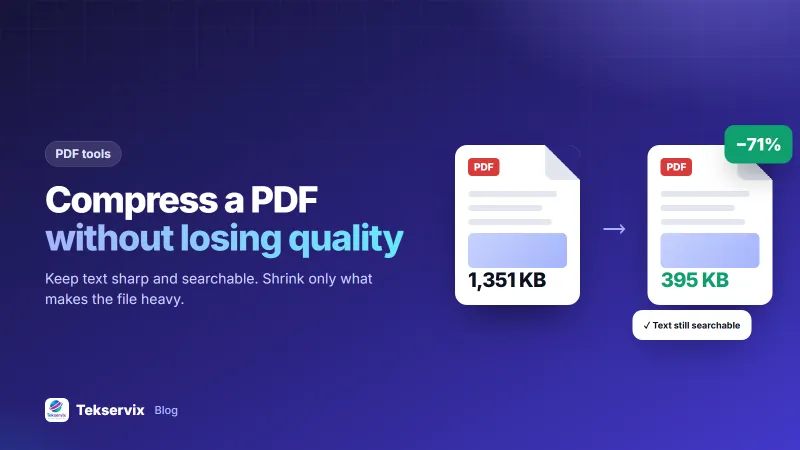
Our test: 1,351 KB down to 395 KB#
While building our compressor, we tested it on a real mixed document containing text and photos, using the Tekservix PDF compressor.
- Before: 1,351 KB.
- After: 395 KB, about 71% smaller.
- Text layer: identical. Every word could still be searched, selected and copied.
- Photos: resampled, with no visible difference on a laptop screen.
Results depend on the file. PDFs full of photos or scans often shrink by 50-90%. A PDF that is already just text may barely change, and a good tool should tell you that instead of handing you a worse copy.
Step by step: compress a PDF in your browser#
- Open Compress PDF on Tekservix.
- Drop your file on the page. It is processed inside your browser, so the document never leaves your device. That matters for contracts, IDs and bank statements.
- Choose Recommended for most files, High quality for printing, or Smallest for strict upload limits.
- Compare the before and after sizes shown on screen.
- Zoom in on a page of text and a photo. If both look right, download the result.
Compressing is free. Downloading the result is included with a Tekservix plan.
Common file size limits worth knowing#
- Gmail attachments: 25 MB. Larger files are sent as a Google Drive link (Google's help page).
- Outlook.com attachments: 20 MB.
- Job, university and government portals: often 2-10 MB per file. Check the form before you start.
Aim for comfortably under the limit. Some systems count the size after encoding, which is larger than the file on your disk.
Special cases#
Scanned documents#
A scan is a stack of images, so it compresses very well. If you also need the text to be searchable, run it through OCR first, then compress.
Several files for one upload#
Portals that accept one file only? Merge the PDFs into one, then compress the merged file once. Compressing each part separately and merging afterwards can keep duplicate fonts and images.
Invoices and quotes#
These are mostly text and a logo, so they should already be small. If an invoice PDF is several megabytes, the logo was probably embedded as a huge image. Upload a smaller logo to fix it at the source; our guide on how to write an invoice covers the rest of a professional invoice.
Signed PDFs#
Compressing changes the file, which can invalidate a certified digital signature. Compress first, then sign.
How to check you didn't lose quality#
- Zoom to 200% on a page of body text. Edges should be as sharp as the original.
- Press Ctrl+F (Cmd+F on a Mac) and search for a word. If it isn't found, the text layer is gone.
- Click a link and fill a form field, if the document has them.
- Print one page if the document is going to be printed.
If all four pass, you've made the file smaller without losing anything that matters.
Frequently asked questions
Can you compress a PDF without losing quality?
Yes, if the tool keeps text and vector graphics unchanged and only resamples oversized photos. Text stays perfectly sharp. Photos resampled to 150 dpi look the same on screen, and 220 dpi keeps print quality.
Why is my PDF file so large?
Usually because of photos stored at full camera resolution or scanned pages. Text alone is small. Leftover objects, thumbnails and poorly compressed images add the rest.
Is it safe to compress a PDF online?
It depends on the tool. Tekservix compresses PDFs inside your browser, so the document is never uploaded to a server. With tools that upload your file, check how long they keep it.

Tekservix Team
The team behind Tekservix
The Tekservix Team builds and supports Tekservix: WhatsApp and SMS APIs, AI tools, invoicing, PDF and SEO tools for growing businesses. We write practical, tested guides based on what we see our customers do every day.
More articles from the Tekservix Team