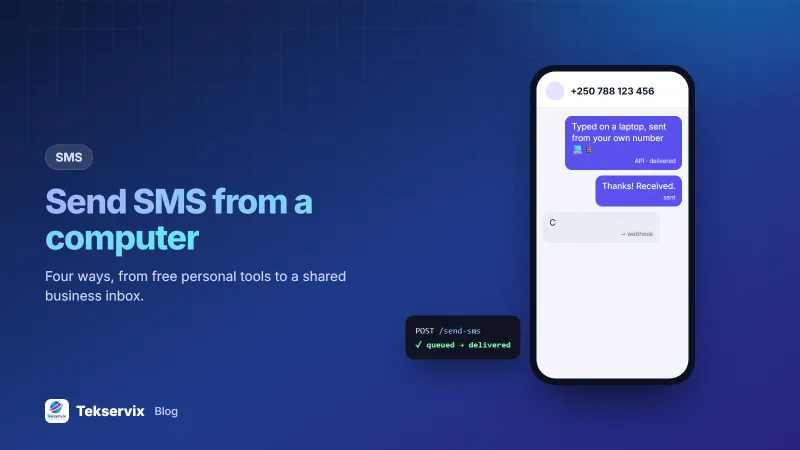
How to Send SMS From a Computer: 4 Ways, From Free to Business-Ready
Four ways to send SMS from a computer: Google Messages for web, Windows Phone Link, iPhone with a Mac, and an SMS gateway for bulk sending, shared inboxes and automation.
On this page
- Option 1: Google Messages for web (Android)
- Option 2: Phone Link on Windows (Android and iPhone)
- Option 3: iPhone with a Mac
- Option 4: An SMS gateway for business
- Which one should you use?
- Setting up an SMS gateway in 15 minutes
- Writing texts that work
- Sharing one number across a team
- Costs to expect
- Good practice
Typing long messages on a phone is slow, and copying phone numbers from a spreadsheet onto a small screen is worse. If you text customers, students or members regularly, being able to send SMS from a computer saves real time. There are several ways to do it. Some are free and built into your phone, and others are designed for businesses that send hundreds of messages a day.
Option 1: Google Messages for web (Android)#
If your Android phone uses Google Messages as its texting app, open messages.google.com/web in a browser on your computer, and pair it by scanning the QR code with the Messages app. Your conversations appear on the computer, and anything you send goes out from your phone's SIM. Google's Messages for web help page walks through pairing step by step.
Good for: personal use and small businesses answering texts from a desk. Limits: one conversation at a time, no bulk sending, and only one computer paired at once in most cases.
Option 2: Phone Link on Windows (Android and iPhone)#
Windows 10 and 11 include Microsoft's Phone Link app. Pair your phone and you can read and send texts from the PC, see notifications and, with Android, access photos. iPhone support exists but is more limited.
Good for: Windows users who want texts next to their other work. Limits: the same one-at-a-time model as Messages for web.
Option 3: iPhone with a Mac#
With an iPhone, turn on Text Message Forwarding in the iPhone's Messages settings and pick your Mac. The Messages app on the Mac can then send and receive regular SMS as well as iMessages.
Good for: Apple households and freelancers. Limits: Mac only, and no bulk features.
Option 4: An SMS gateway for business#
When you need to message lists of people, share an inbox with colleagues or let your software send texts automatically, personal tools run out. An SMS gateway such as SMS Gora turns an Android phone into a sending device that you control from a web dashboard:
- Bulk campaigns: upload a CSV, personalise each message with the person's name or balance, and set the sending pace.
- Two-way inbox: replies appear by conversation in the browser, and anyone on your team with access can answer.
- Auto-replies: answer keywords such as "PRICE" or "HOURS" automatically.
- Opt-outs: STOP replies are handled for campaigns without manual work.
- API: your website or app can send texts too, like order updates and login codes.
Messages still leave from your phone's SIM and are billed by your operator, so customers see your normal number and can reply to it.
Which one should you use?#
| Need | Best option |
|---|---|
| Reply to personal texts at your desk | Messages for web, Phone Link or Mac Messages |
| Send one message to 300 customers, each with their name | SMS gateway campaign |
| Several staff answering customer texts | SMS gateway inbox |
| Texts triggered by your website or software | SMS gateway API |
Setting up an SMS gateway in 15 minutes#
- Choose a phone. Any Android phone from the last few years with a SIM card works. A spare phone that stays plugged in at the office is ideal.
- Install the app and scan the pairing QR code from the SMS Gora dashboard.
- Turn off battery optimisation for the app, so Android doesn't pause it when the screen is off. Our guide to SMS gateway battery settings covers each phone brand.
- Send a test to your own number from the browser.
- Import your contacts and create your first campaign.
Writing texts that work#
- Stay within 160 characters where you can, so each message is billed as one SMS. Emoji and some accented letters shrink the limit; see SMS character limits.
- Say who you are at the start: "[Shop name]: your order is ready."
- One message, one purpose. A reminder or an offer, not both.
- Tell people how to opt out of marketing messages.
Sharing one number across a team#
With personal tools, the texts live on one phone and one computer, so only one person can really handle them. A gateway inbox is shared: several colleagues can see the same conversations, pick up where someone else left off, and customers keep texting the one number they know. For a clinic reception, a school office or a small shop with two or three people answering customers, that alone is often the reason to switch.
Costs to expect#
With every phone-based method, including a gateway, your mobile operator charges for each SMS at your plan's rates. Bundles bring the price per message down a lot, so if you send more than a few hundred a month, ask your operator about SMS bundles for the SIM you use. SMS Gora adds a flat monthly fee per linked phone, starting at $3.99, with no per-message charge on top.
Good practice#
Whichever tool you use, only send marketing messages to people who agreed to receive them, respect STOP replies, and avoid sending late at night. Your country's communications regulator usually publishes the rules; in Rwanda that's RURA. For planning campaigns that people welcome, read our SMS marketing best practices and bulk SMS for small business.
If you also need to send login codes, our guide to SMS OTP verification covers the security side.
Frequently asked questions
Can I send SMS from my computer for free?
Yes, if you have an Android phone (Google Messages for web or Windows Phone Link) or an iPhone and a Mac (Messages). The texts are still sent by your phone and charged by your operator at normal rates.
Can I send bulk SMS from my computer?
Personal tools like Messages for web are built for one conversation at a time. For hundreds of personalised messages, use an SMS gateway that lets you upload a contact list and paces the sending.
Does my phone need to be on to send SMS from a computer?
For all phone-based methods, yes: the phone does the actual sending. It needs to be switched on, have signal, and for web-based tools, an internet connection.

Tekservix Team
The team behind Tekservix
The Tekservix Team builds and supports Tekservix: WhatsApp and SMS APIs, AI tools, invoicing, PDF and SEO tools for growing businesses. We write practical, tested guides based on what we see our customers do every day.
More articles from the Tekservix Team